
Overview
The Packages overview is accessible for all Patchstack users.
Navigate to it by clicking Packages in the navigation menu, or go to https://app.patchstack.com/packages/overview.
The Packages overview lists every component your sites use — plugins, themes, WordPress core, PHP and database versions, and the npm packages of your JavaScript apps — with one row per package, however many sites it is installed on. Plugins and themes that are grayed out are deactivated on every site that has them.
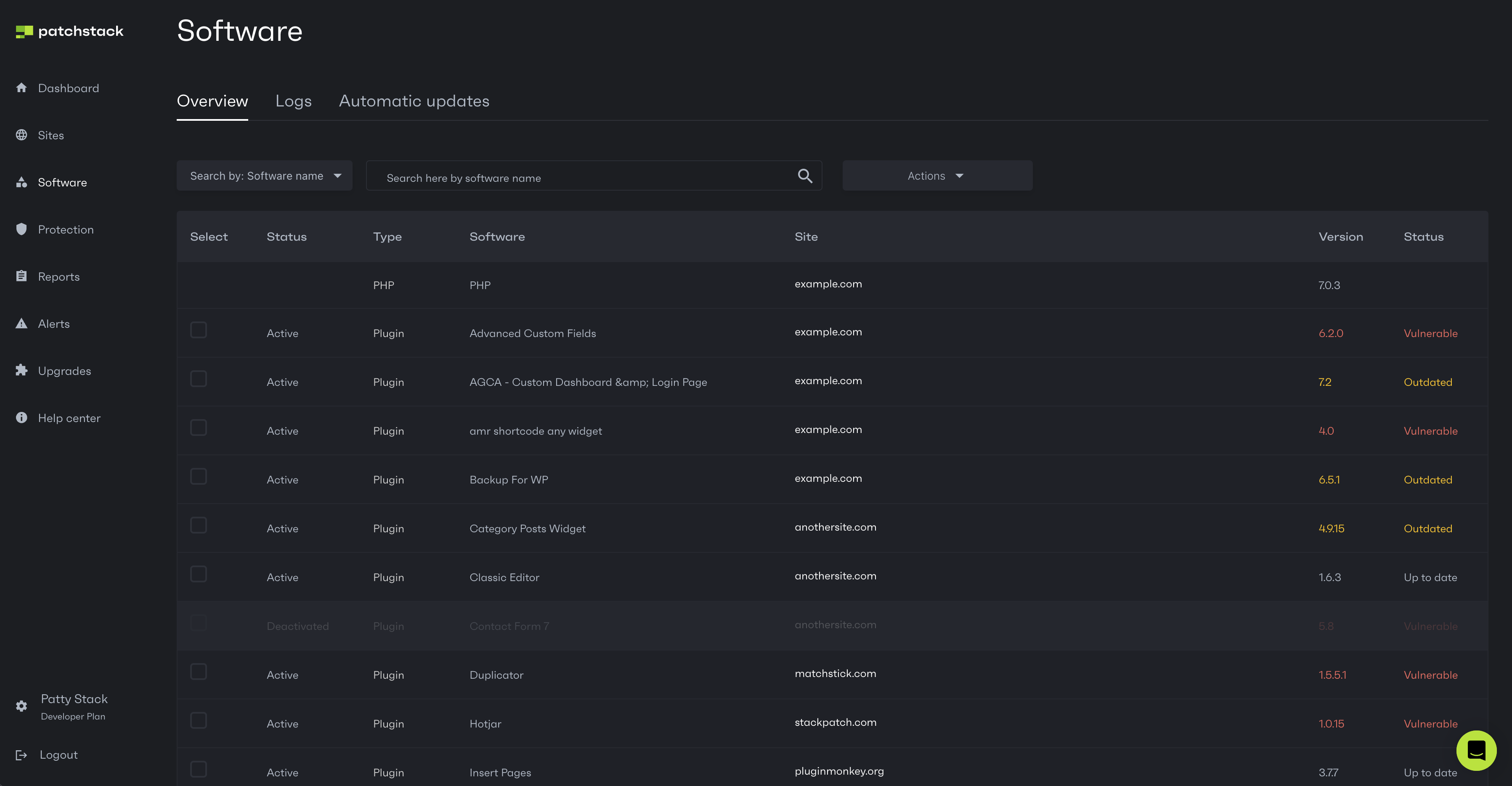
What the columns mean
Section titled “What the columns mean”| Column | What it shows |
|---|---|
| Type | Plugin, Theme, WordPress, PHP, npm and so on. |
| Package | The package name. A warning icon next to it carries a note about the package, such as two packages sharing a slug. |
| Installs | How many of your sites have the package. The bar splits those installs three ways: green — protected, a virtual patch is blocking the known vulnerability; grey — no known issues; red — vulnerable and not protected. When some installs are red, the count of them is shown as N exposed: those are the ones that need you. |
| Latest version | The newest version Patchstack knows of. The green part of the bar is the share of your installs already on it; the rest are behind. |
| License | The package’s licence. Known for npm packages; WordPress plugins and themes show N/A. |
| Repository | Where the package’s source lives — the wordpress.org page for plugins, themes and core, or the repository the npm registry lists. |
| VDP | Managed when the product runs a vulnerability disclosure program with Patchstack, linking to its page in the Patchstack database. |
Click a row to open the package’s details: every site it is installed on, 25 at a time, with the version each site runs and whether that install is vulnerable. The counts at the top cover every site, not just the page you are looking at.
Narrowing the list
Section titled “Narrowing the list”The tabs above the table filter it by status — Vulnerable, Update now, Mitigated, Threats blocked, Deactivated and Advised to replace — each with its count. Vulnerable and Mitigated never overlap: Vulnerable lists the packages with an install nothing is protecting, which are the ones to act on, and Mitigated lists those where a virtual patch covers every vulnerable install. The site’s own Packages tab splits them the same way.
Search by package name, package slug or site, and use the platform selector to show only WordPress, Drupal or npm packages.
Updating the software
Section titled “Updating the software”You can update WordPress plugins, themes and core from this page. Keep in mind to back up your files and databases before doing that.
- To update every outdated WordPress plugin, theme and core install across your sites, choose WordPress in the platform selector, then Actions > Update all outdated at the end of the toolbar. A package name or slug search narrows it to the matching packages; the tab you are on does not.
- To update a package on particular sites, click its row and update from the list of sites. Update all there updates every outdated install of that package.
Only WordPress plugins, themes and core can be updated from Patchstack. For anything else the update button is off and says Manual update required — for an npm package, change the version in your own project and redeploy.